https://www.fmkorea.com/1598251840
Football Manager Automatic Integrated Graphics Patch v2.9 20260531
When executed, facepack, logo, uniform, and trophy graphics patch files are automatically installed to Football Manager.
For convenience, with a single run you can easily install all popular Football Manager integrated patch files even as a beginner.
Since the file size is quite large, we do not plan to update frequently, and if you want the latest files, please download them individually.
Torrent download link (fast download) [approximately 20 GB]
Works on 26 and above. On series under 24, FMG logo does not appear on some screens
Please use the torrent link above if possible (fast download). Direct download link (slow download): [Direct Download]
[Notice]
- This program is provided for user convenience only, and FMKorea is not responsible for any issues resulting from running the program.
If you manually set the graphics file path using the --user_data_location variable in Steam settings, this program cannot automatically detect the path.
[Auto Installation Compatibility]
Compatible with all Steam, standalone, Xbox Game Pass, and Epic Games Store installations.
However, Console versions are not compatible.
Compatible with Football Manager 2020 and above
Korean Windows (or set Korean locale if using Windows in another language)
[Mac User Auto Installation]
Mac link: autofm for macOS v3 (Mac patch automatic installation), created by: WestHamChamsGanda
[Instructions]
Run Football Manager at least once and close it.
Download the files (Bandizip recommended if compression software is needed), extract the compressed files, and then run autofm.
AVAST antivirus may incorrectly detect ransom ware during extraction because many patch files are created in My Documents; in such cases, please select "Allow app".
If Windows Defender SmartScreen is active, some users may see the screen below, and please select the red box area (this is a safe program and a warning that appears to some initial installation users because we do not pay separately to receive a certificate):
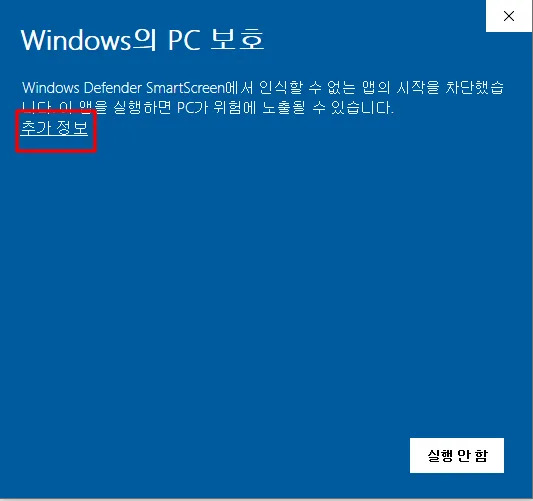
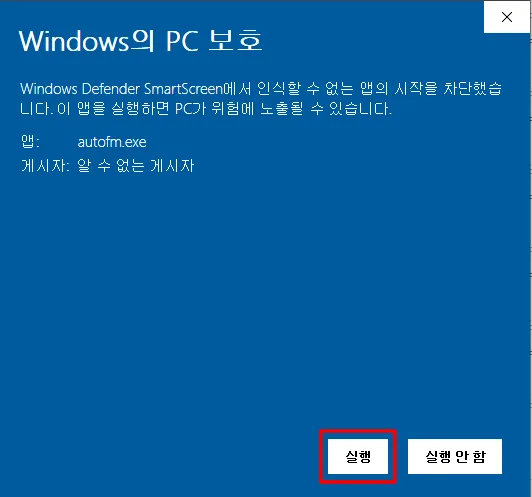
If you do as above, the run button will generally be visible, but if not, please check the following settings: In Windows 10, Start -> Windows Security -> App & browser control -> Reputation-based protection settings -> Block apps that weren't installed from Microsoft Store -> Off
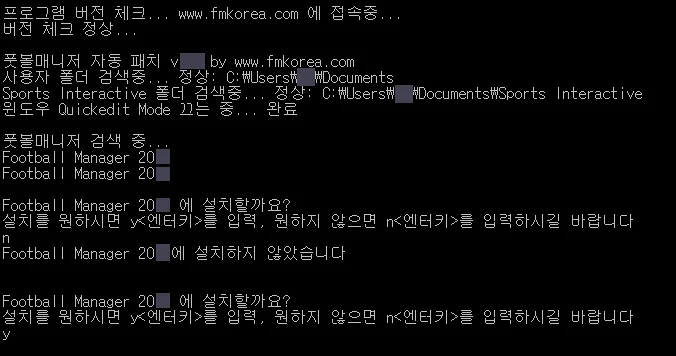
If multiple versions of Football Manager are installed, select the installation for the desired version.
Then the files will be automatically installed.
Since the files are quite extensive, installation takes a considerable amount of time.
During the installation process, it will ask whether to delete the cache, but if you follow the instructions above correctly, it is not necessary.
However, since some users experience problems due to cache, we provide automatic deletion as a convenience.
Even if you delete the cache, game data and settings are preserved.
After installation is complete, you can delete the files used for download and installation.
It seems that for some users, Football Manager has a bug where the cache is not properly deleted.
So we also provide an automatic cache deletion function when installing.
Related screenshots:
[Currently included files]
1. Face pack: Cutout sortitoutsi_cutout_megapack_2026.06
Source and original download link: https://sortitoutsi.net/graphics/style/1/cut-out-player-faces
2. Logos: Standard FMG Standard Logos 2026.06
Source and original download link: https://footballmanagergraphics.com/files/file/948-fmg-standard-logos-megapack-202600/
3. 25-26 season 2D integrated pack (26.04.07)
Source and original download link: https://www.fmkorea.com/8884415064 Kim Ga-eun
[Changes]
2026-05-31 Version 2.9 20260531 - Updated cutouts, logos, uniforms to latest version
2025-11-01 Version 2.8 20251101 - Removed trophy data due to 26 compatibility issues
2025-10-25 Version 2.8 20251025 - Updated for 26 compatibility by removing duplicate filenames and distributing files across 20 directories to significantly improve installation speed
2025-10-25 Version 2.6 20251025 - Trophy version update, fixed issue with 26 location detection, fixed version output message inconsistency
2025-10-23 Version 2.6 20251023 - Updated with latest cutouts, logos, uniforms integrated package (removed in beta due to 3D malfunction)
2025-07-12 Version 2.5 20250714 - Updated with latest cutouts, logos, uniforms integrated package
2024-07-14 Version 2.5 20240714 - Updated with latest cutouts, logos, uniforms integrated package
2023-10-24 Version 2.5 20231024 - Fixed version check error
2023-10-24 Version 2.4 20231024 - Added multi-core decompression support, replaced decompression program
2023-10-24 Version 2.3 20231024 - Updated with latest cutouts, uniforms and 2D uniforms integrated package, replaced and updated logo integrated package (from Standard to FMG), added 3D uniforms and added safety mechanism to allow installation only on 2020 and later
2023-07-07 Version 2.2 20230707 - Updated with latest cutouts, uniforms and 2D uniforms integrated package
2022-10-21 Version 2.2 20221021 - Updated with latest cutouts, uniforms and 2D uniforms integrated package
2022-03-18 Version 2.2 20220317 - Updated with latest cutouts, logos, uniforms, trophies and 2D uniforms integrated package
2021-11-10 Version 2.2 20211111 - Updated with latest cutouts and 2D uniforms integrated package
2021-08-13 Version 2.2 20210813 - Updated with latest cutouts and logos integrated package, added Xbox Game Pass support
2021-06-20 Version 2.1 20210617 - Updated with latest cutouts and 2D uniforms integrated package, fixed compatibility issue where Korean installation guide was not displaying properly on some Windows systems
2020-12-04 Version 2.0 20201204 - Updated with latest cutouts and 2D uniforms integrated package, fixed minor bugs (fixed quickedit error message that appeared when installing from paths with spaces, modified to show more helpful guidance message when running without extracting)
2020-06-10 Version 1.9 20200610 - Updated with latest uniforms integrated package, added automatic cache folder detection/deletion support and fixed to prevent cloud/game folder deletion, fixed bug where 2D uniforms didn't work in version 1.8 20200605
2020-06-05 Version 1.8 20200605 - Updated with latest cutouts and 2D uniforms integrated package, fixed bug where cache folder detection and deletion automatic support wasn't working properly, added automatic installation support for Football Manager Touch
2020-05-14 Version 1.7 20200514 - Updated with latest cutouts and 2D uniforms integrated package
2020-03-31 Version 1.7 20200331 - Updated with latest cutouts and 2D uniforms integrated package, automatically detects and warns when running without properly extracting
2019-11-02 Version 1.6 - Updated with latest cutouts and 2D uniforms integrated package, added automatic cache deletion feature, 3D uniforms integrated package excluded from automatic installation due to exceptions, added separate uninstall tool (autofm_delete)
2019-05-04 Version 1.5 - Updated with latest cutout, uniform integrated pack, more detailed warning message displayed when running exe without extracting
2019-02-18 Version 1.4 - Fixed path error issue that occurred for users with spaces in the extraction path
2019-02-17 Version 1.3 - Changed to latest cutout, added detection for already installed versions with removal option before installation, disable Windows Quickedit Mode
2019-02-15 Version 1.2 - Windows 32 bit compatibility, replaced metallic logo with standard logo integrated pack, improved error message display
2019-02-14 Version 1.1 - To avoid compatibility issues, 3D uniforms automatically detected and not installed for Football Manager 2017 and below
2019-02-13 Version 1.0 - First version released
Thank you.
[Notice] Comprehensive resource links for first-time Football Manager installation/beginners
Football Manager 26: https://www.fmkorea.com/9063643090
Football Manager 2024: https://www.fmkorea.com/6294079487
Football Manager 2023: https://www.fmkorea.com/5129508876
[Other Discussion]
If you have good resources you'd like to share with Football Manager users, please send me a private message and I will seriously consider including them in future auto-installation.
[Other Questions and Answers]
Question)
After running autofm, the path cannot be found and installation fails, closing immediately.
Answer)
Please refer to the installation instructions again. Please especially follow the part about running and closing Football Manager at least once.
However, the Console version cannot have additional patch installation.
Question)
The installation was completed well, but it seems some features are not being applied. What should I do?
Answer)
If there were no errors during the installation process (errors are rare except for those caused by insufficient hard drive space), please check if you have properly followed the usage instructions. In particular, please verify that you have properly configured the cache settings. If it still doesn't work, it means the data is not included in the package.
Question)
The downloaded file is small and nothing works? How do I use torrents? It says it's not a compressed file or that there's no associated app. What should I do?
Answer)
Please search for how to use torrents on Google or Naver.
If you're not sure, try using the direct download link in the post link.
When extracting compressed files, please use professional compression tools like Bandizip (or ALZip).
Question)
I'm getting compression file-related errors like "The compressed data is corrupted."
Answer)
This happens because you're extracting before the torrent has fully downloaded. Please download it completely and then extract it.
Question)
During automatic installation, there seem to be file creation errors during the installation. I'm getting errors like "Access Denied" or "Permission Denied" during installation.
Answer)
If it's not a hard drive space issue, try right-clicking on autofm and running it with administrator privileges.
Check if your antivirus is incorrectly blocking the installer.
Antivirus programs like AVAST, Bitdefender, and V3 paid version sometimes protect My Documents and prevent other programs from accessing it.
Question)
After installation is complete, can I delete the files used for installation?
Answer)
Yes, you can delete them. You can delete them using Windows Explorer.
Question)
Not the installation file, but how do I remove the patch files installed in the game after installation is complete?
Answer)
You can automatically delete the patch installed in the game by running autofm_delete.
If you need to download the patch removal program separately again, please use the link below:
Download autofm_delete.exe
Question)
How long does it take to install?
Answer)
It varies greatly depending on your computer usage. On a fast computer with an SSD, it typically installs within tens of minutes, whereas on an older, slower computer with a regular HDD, it can take several hours.
Question)
Is it possible to change the patch installation path?
Answer)
The game installation path and patch installation path are different. You can freely change the game installation path.
You can change the patch and graphics path through Steam or Epic settings, but in such cases automatic installation is not possible and you must manually install all graphics files.
For information on how to change the graphics path, please refer to https://www.fmkorea.com/3110379468 for EFMGAMES and https://www.fmkorea.com/3110363752 for Steam (this is not something I support).
However, if you officially change the location of "My Documents" in Windows, the patch path will change accordingly.
Question)
What should I do if manual installation is required (Mac users, Steam users who changed the graphics path)?
Answer)
For manual installation, extract the archive and copy all files in the data directory similar to the installation guide at https://www.fmkorea.com/560755247 and manual installation is possible.
When applying additional patches manually, follow the folder name priority.
If you're not sure, create a 99998auto folder where the 99999auto folder is located and install the manual patches there.
Example: Create /My Documents/Sports Interactive/Football Manager 201[your version]/graphics/99998auto and copy the manual installation files there
Question)
After installation is complete, how much space will these files take up?
Answer)
It is expected to take up 26 GB or less.
Question)
What is the path where the files are installed?
Answer)
In most cases: /My Documents/Sports Interactive/Football Manager 201[your version]/graphics/99999auto
Game Pass: /My Documents/Sports Interactive/Football Manager 201[your version] Xbox Edition/graphics/99999auto
Touch: /My Documents/Sports Interactive/Football Manager 201[your version] Touch/graphics/99999auto
Question)
Some images appear corrupted in the Football Manager screen or an application error occurs.
Answer)
This resource is compatible with Football Manager 2020 and later.
Below that, a large number of images may appear corrupted on screen, and in some cases an application error may occur entirely.
In that case, you can delete the patch.
Question)
When I run autofm, the black window disappears and it doesn't run properly.
Answer)
autofm is compatible with Korean Windows and Korean locale.
However, if it's not Korean Windows, it will work if you change it to Korean locale.
If it's not Korean locale, please run autofm with Korean locale.
However, support related to Korean locale changes is not provided separately.
Original source of materials:
https://sortitoutsi.net/graphics/style/1/cut-out-player-faces
https://footballmanagergraphics.com/files/file/948-fmg-standard-logos-megapack-202600/
https://www.fmkorea.com/799943135 (Kim Ga-eun)
https://sortitoutsi.net/graphics/style/32/trophies-megapack